This is the Android app used to control the Johnny 5 pedal.
Installation Instructions:
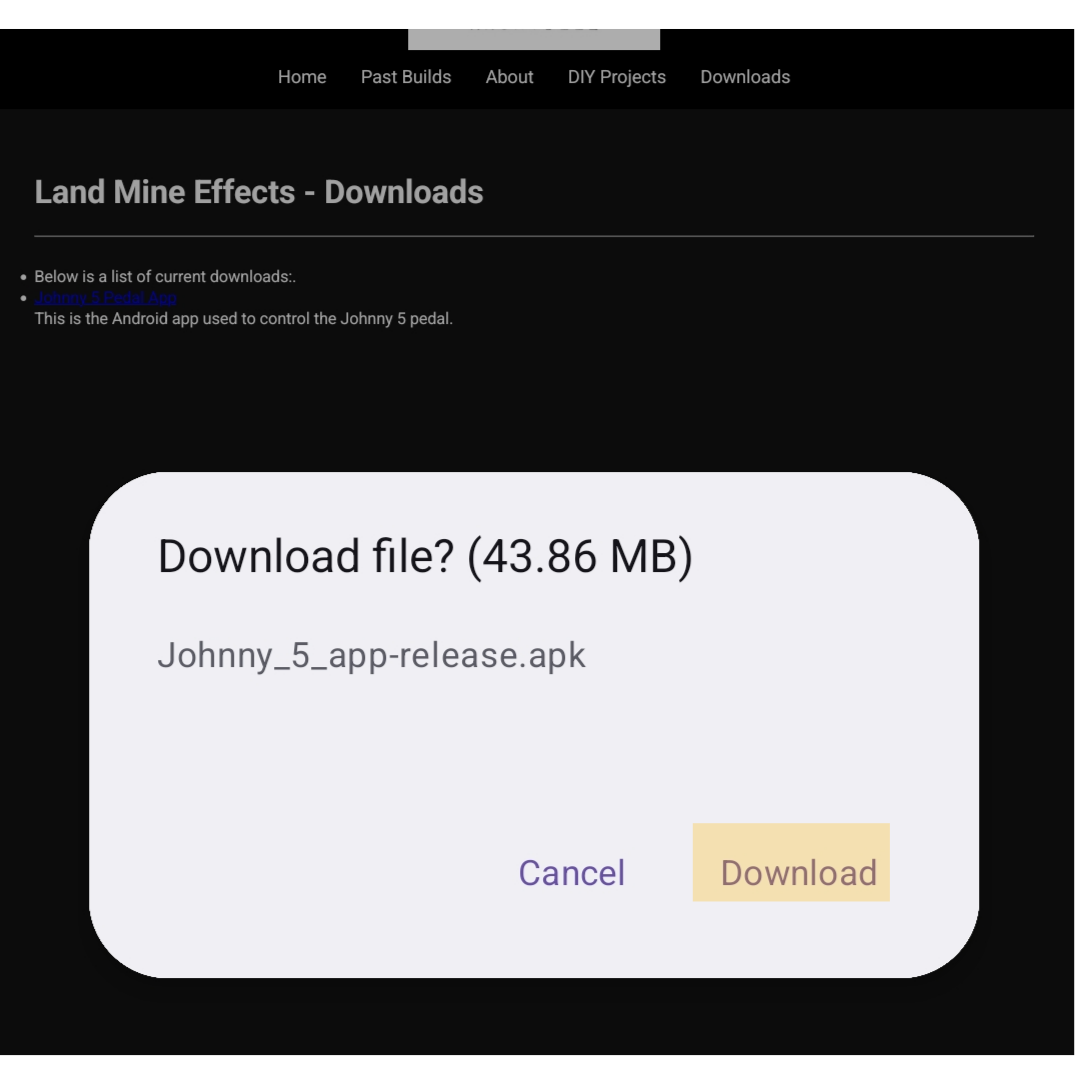
Navigate to this page (www.landmineeffects.com/downloads) in a browser on your Android Device. Click the link above to start the download process. You will be met with the prompt below:
Click on "Download."
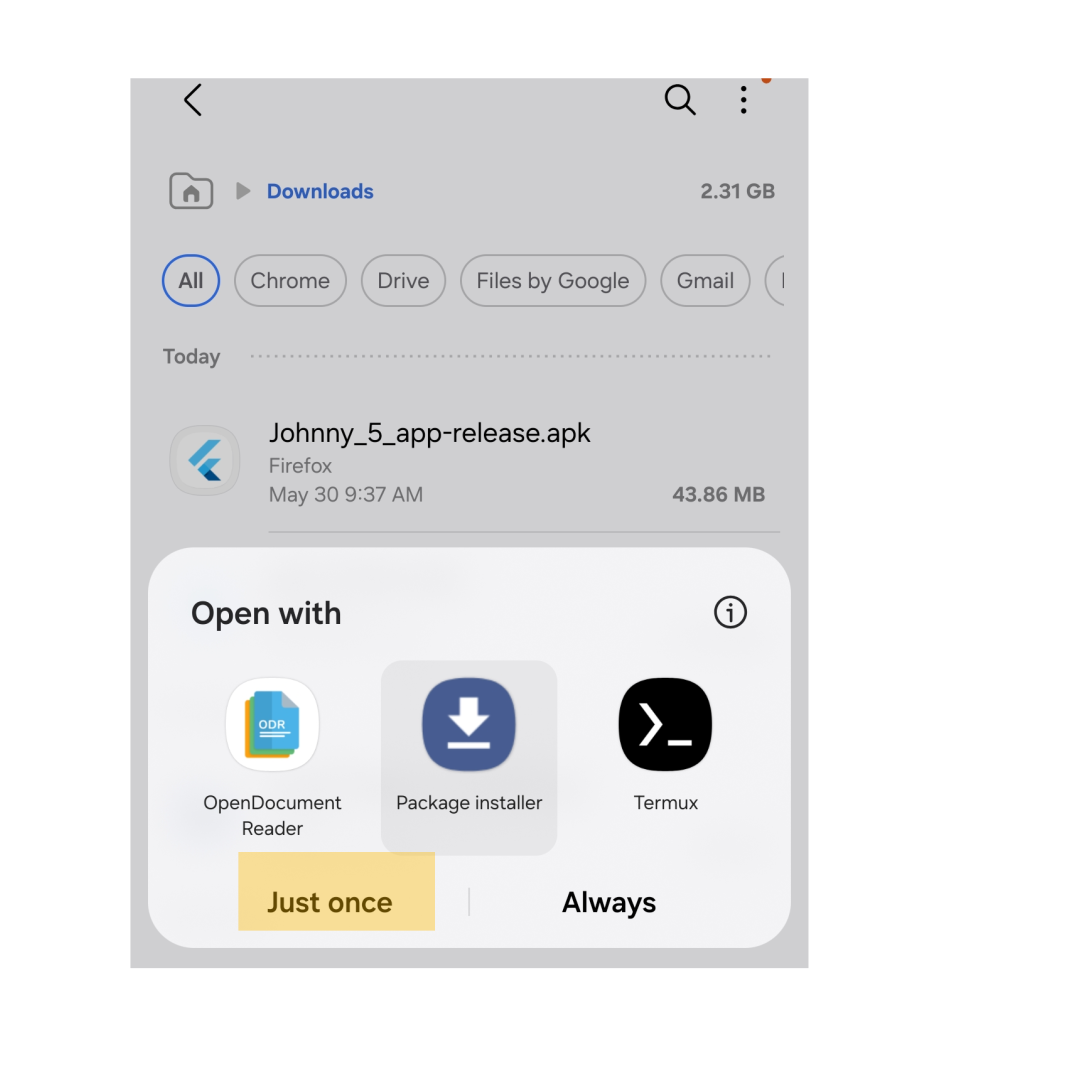
Once the download is complete, open "Files" and navigate to your Downloads directory. Click on "Johnny_5_app_release.apk," where your device may ask what you would like to open it with. Select "Package Installer" from the list of options, and click the "Just Once" button.
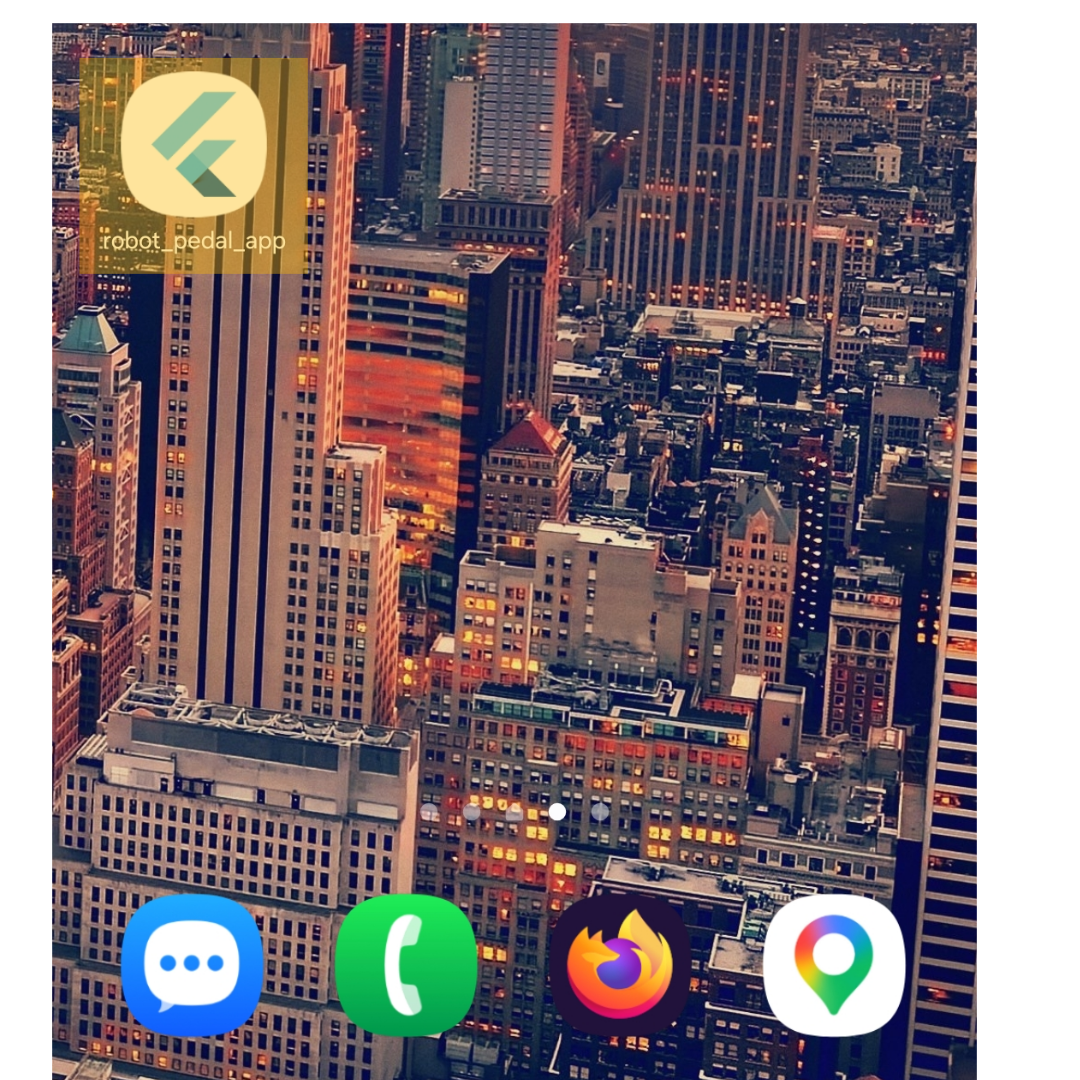
At this point, your device may ask you to perform a scan of the software to determine whether it's safe. Once the scan is performed, your device will report "This app appears safe. Continue with installation?" Select "Yes," and your Android device will install the software, titled "robot_pedal_app," and will have a Flutter Icon as shown below:
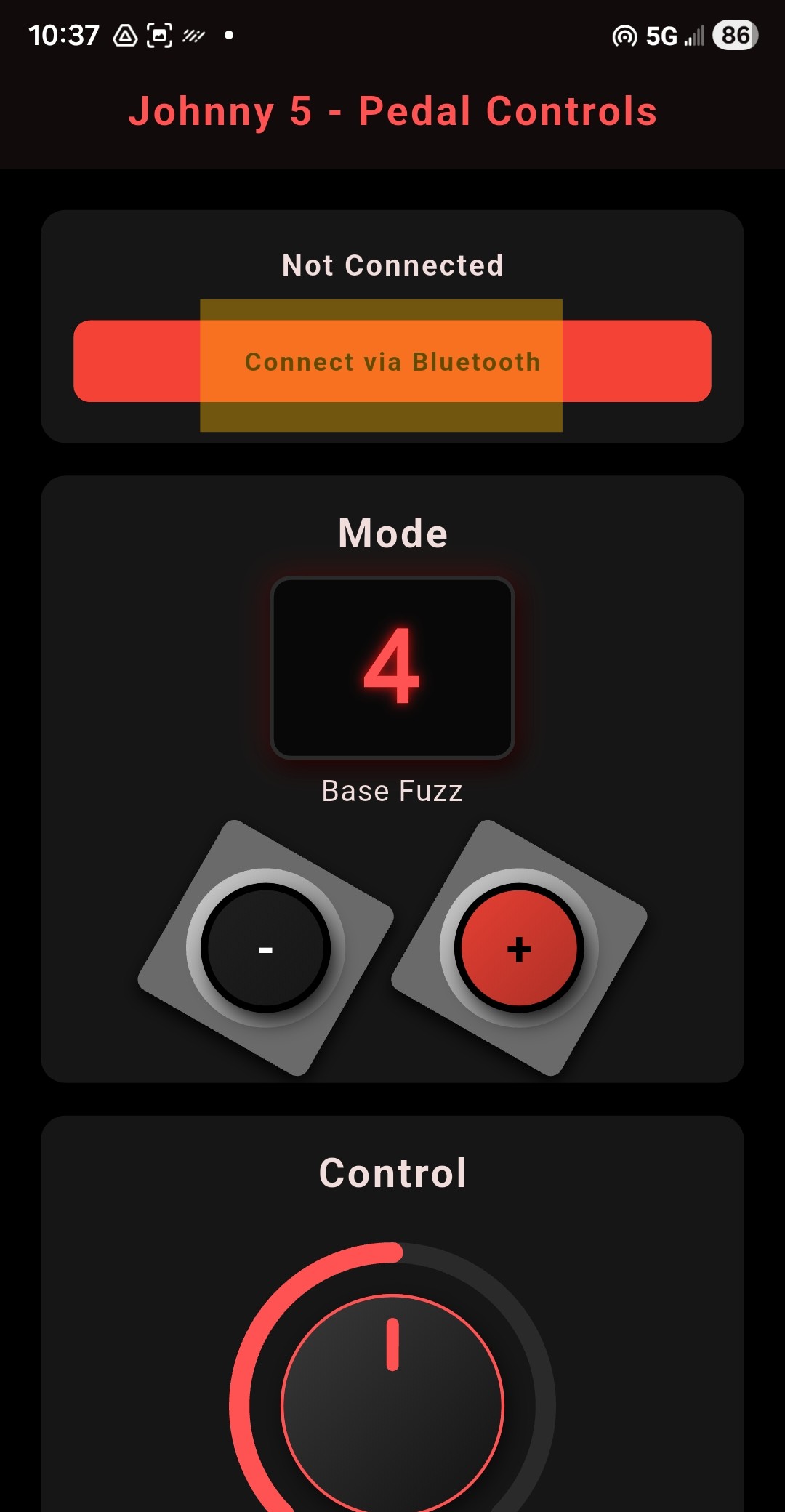
Once the app is opened, you will be greeted with the following screen:
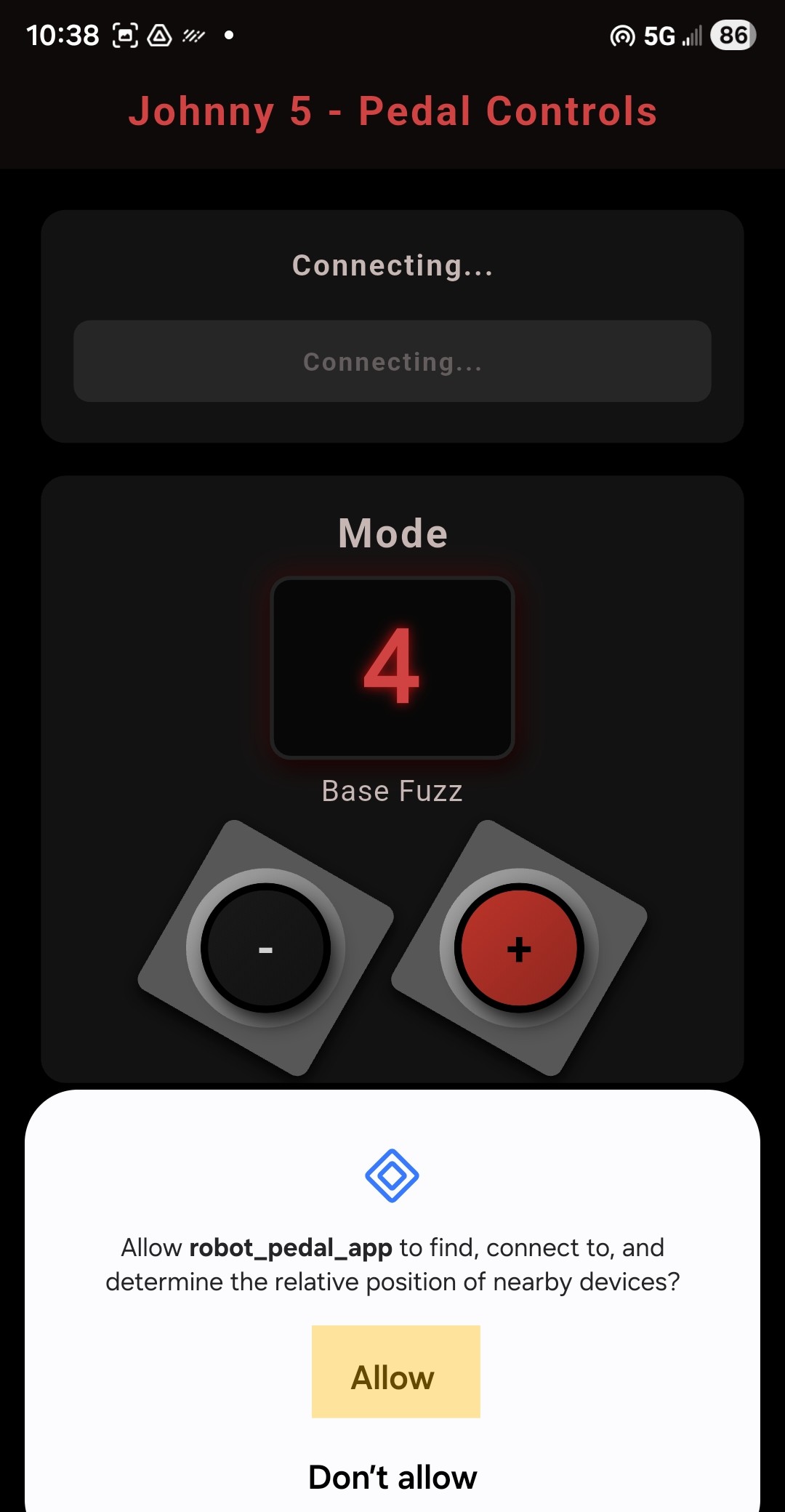
Make sure the pedal is powered on via a 9vdc, center negative supply, and that the pedal's red indicator LED is ON Then, click on the "Connect via Bluetooth" button. Afterwards, you will be greeted by Android OS with a permissions button:
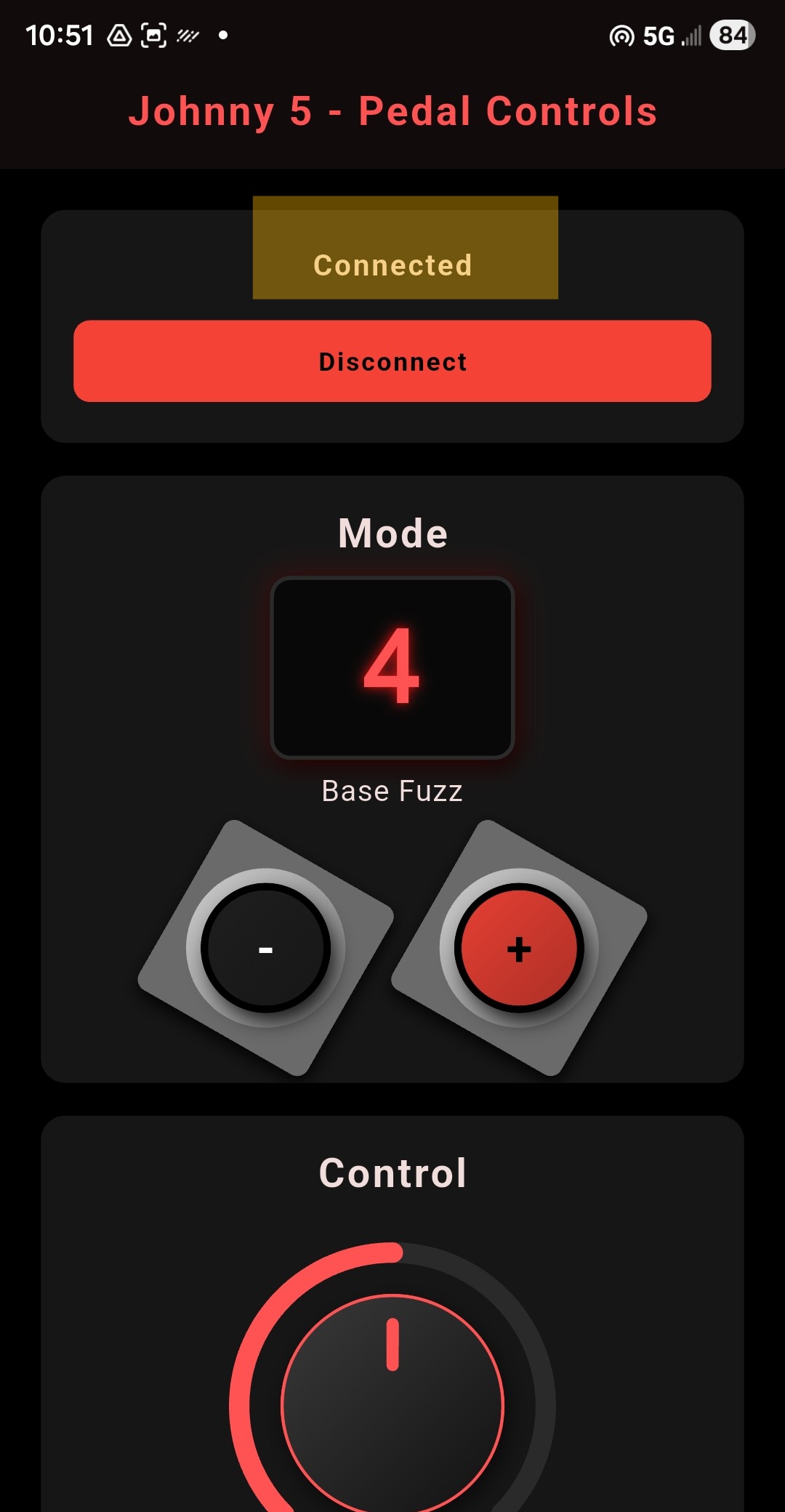
Click "Allow," and after a few seconds you will see the following if successful:
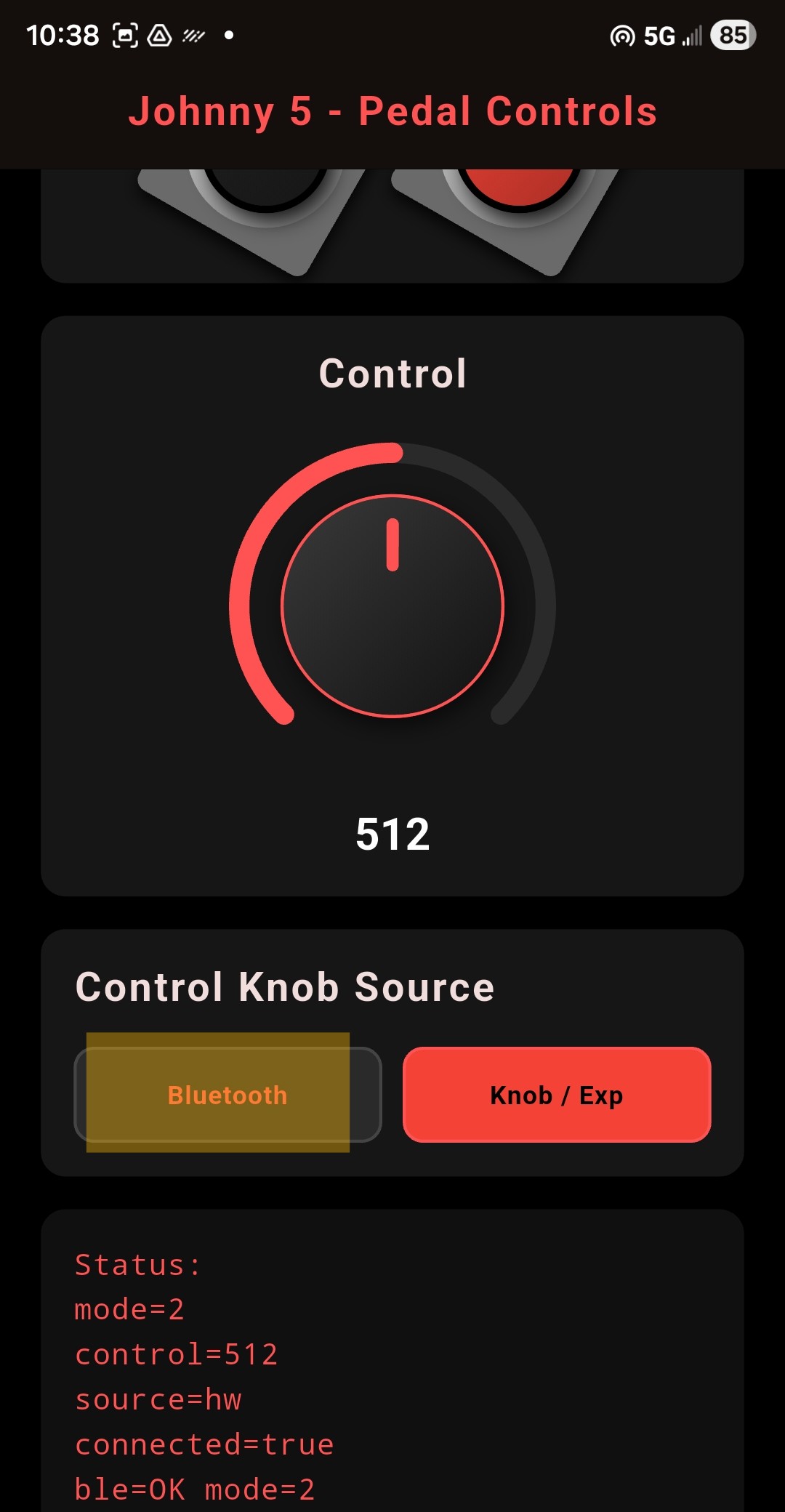
Once connected, you can change modes via the black and red buttons on screen—the same as pressing the buttons on the actual pedal. However, the Control Knob on the actual pedal is the only means of controlling the pitch of the Johnny 5 unless either a) you have an expression pedal plugged in to the expression pedal jack, and the pedal's toggle is switched to EXP, or b) you have selected "Control Knob Source — Bluetooth" inside of the app once connected, as shown below:
Clicking on "Bluetooth" inside the app once connected hands over control of the control knob to the app (which will turn the "Bluetooth" button RED), whereas leaving the Control Knob Source as "Knob / Exp" gives the pedal itself control—enabling you to either use the Control knob on the pedal, or else use an expression pedal, to adjust the Control.
Note that, of the three methods of adjusting Control, two of those methods: 1) hardware control knob (the leftmost knob on the pedal) and 2) expression pedal, require you to use the pedal itself to determine how you'd like to adjust the Control settings. This enables use of the Johnny 5 without needing to utilize this app. While the app is useful for recalling settings or not needing to bend over, it is not required to run the Johnny 5—which is otherwise an onboard hardware-controlled device.
Status Indicators:
Mode: Indicates which of the settings (0-7) the pedal is in
Control: While the app is controlling the settings of the Control knob, this number (1-1023) indicates where along the total number of pitch shifts the Control knob is set to. Note that different modes will result in different pitches for each setting of the Control knob.
Source: Indicates either "hw" or "bt" as the control source (either "hardware" or "bluetooth"). If "hw" is shown, the pedal itself still dictates whether the physical control knob or an expression pedal is being read as the Control knob voltage.
Connected: A boolean (true or false) flag that the app checks to return a value that indicates whether or not the pedal is connected via Bluetooth.
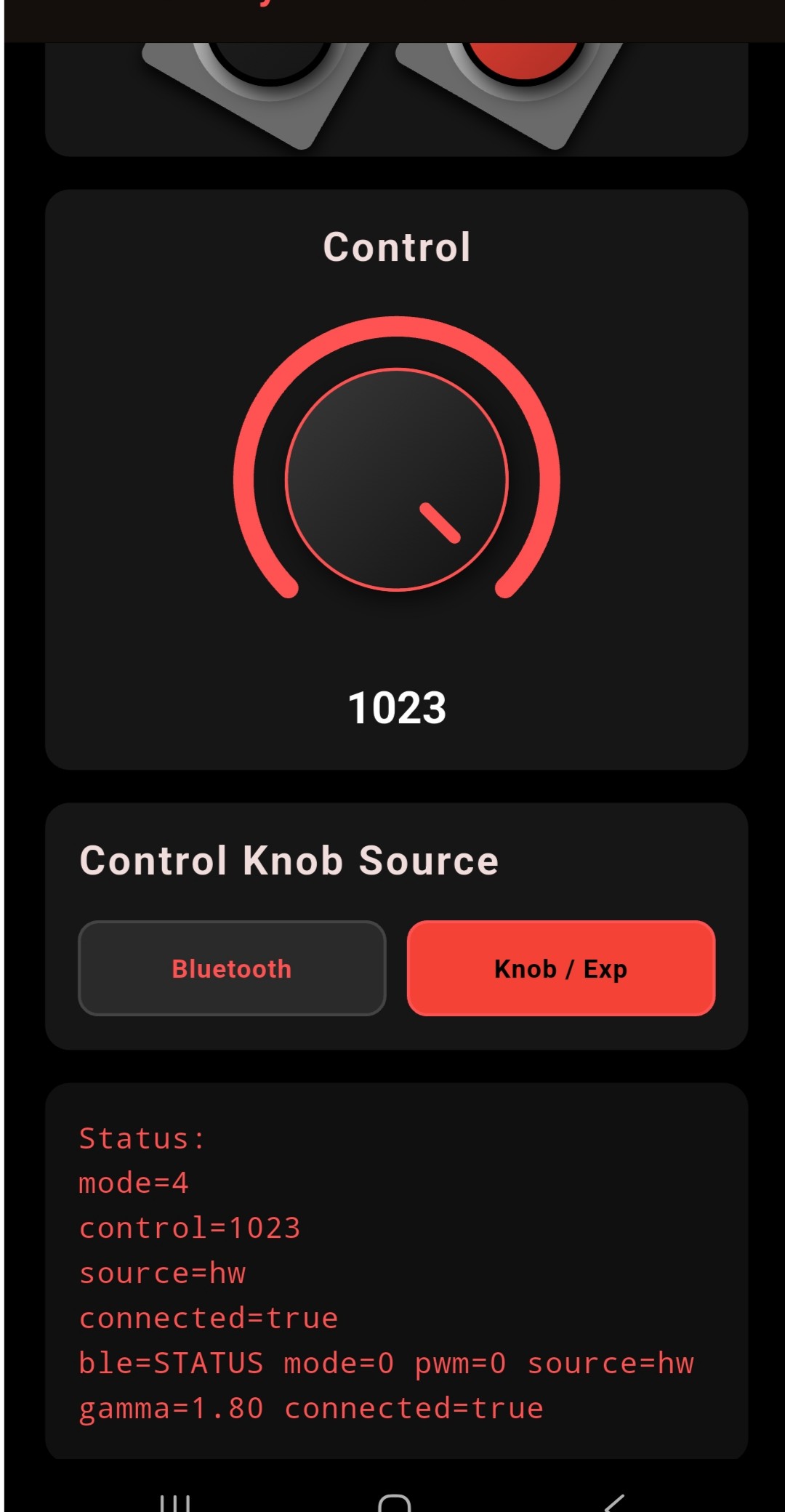
BLE: A non-boolean scan of the pedal's firmware settings that returns "Disconnected" if the pedal is disconnected from Bluetooth, "Scanning..." if the pedal is attempting to connect, and five values (pulled from the pedal itself) that are shown below once the pedal is connected to BLE (Bluetooth Low Energy):
Mode: Indicates which mode (0-7) is currently active on the pedal. Note that changing modes on the actual pedal may make the app and pedal out-of-sync. This can be easily fixed by powering the pedal off, and restarting the app.
PWM: This stands for "pulse-width modulation," and indicates the strength of the Control knob's voltage. The app works by sending signals to a firmware controller, which in turn utilizes PWM to change the voltage of an actual LED. On the other end of that LED, there's an LDR (light-dependent resistor). This is resistor is key to what powers the Control knob's resistance. In essence, whether you're using the physical Control knob, an expression pedal, or the app, this internal LED's brightness adjusts the resistance voltage being sent to the pedal's HT8950 robotic voice chipset. This is in contrast to how most pedals use resistance (including the Death By Audio Robot circuit on which this pedal is based)—which is to control resistance directly via a potentiometer. In the Johnny 5's case, the on-pedal potentiometer (Control knob), an auxillary expression pedal, or the Johnny 5 app is what controls this resistance value by adjusting the LED's brightness and thus changing the resistance value of the LDR.
Source: This shows either hw or bt, to indicate how the Control setting is currently being changed.
Gamma: This value indicates the firmware's reading of the Control's voltage, which is useful in determining how the Control voltage is adjusted in the case of using an expression pedal. Essentially, the gamma reading is the firmware's attempt at trying to calibrate for different resistance values, as each expression pedal has different maximum and minimum resistances. Basically, the firmware was programmed to adjust to your expression pedal.
Connected: This is a reference inside of the app to the pedal's onboard firmware that indicates back to the app whether or not the pedal itself is showing up as "connected" or not.